Engineering
Generate variant designs and build new antibodies based on these designs. Optimized leads have improved developability critical for downstream processing and manufacturing.
This tool is useful for engineering antibodies to improve their developability. The tool lists desired mutations entered via the Liabilities or PFA, or directly in the Engineering tool. The tool can be used to generate combinatorial variant designs and build new antibodies based on these designs.
Using the Engineering tool exemplifies the core work principle to "Be Inherently Lazy"—working very hard to build an easy, reproducible, and error-eliminating method to do work. Rather than copying a parent sequence in Excel multiple times and editing mutations in the copied versions by hand to generate combinatorial variants (which is slow, repetitive, and prone to human error), you can use the Engineering tool to design, filter, and build complex combinations in a fraction of the time with absolute consistency.
Accessing the Tool
Select exactly one antibody in the Project View. Go to the Edit menu and select Engineering. This will open the Engineering workspace in a new tab.
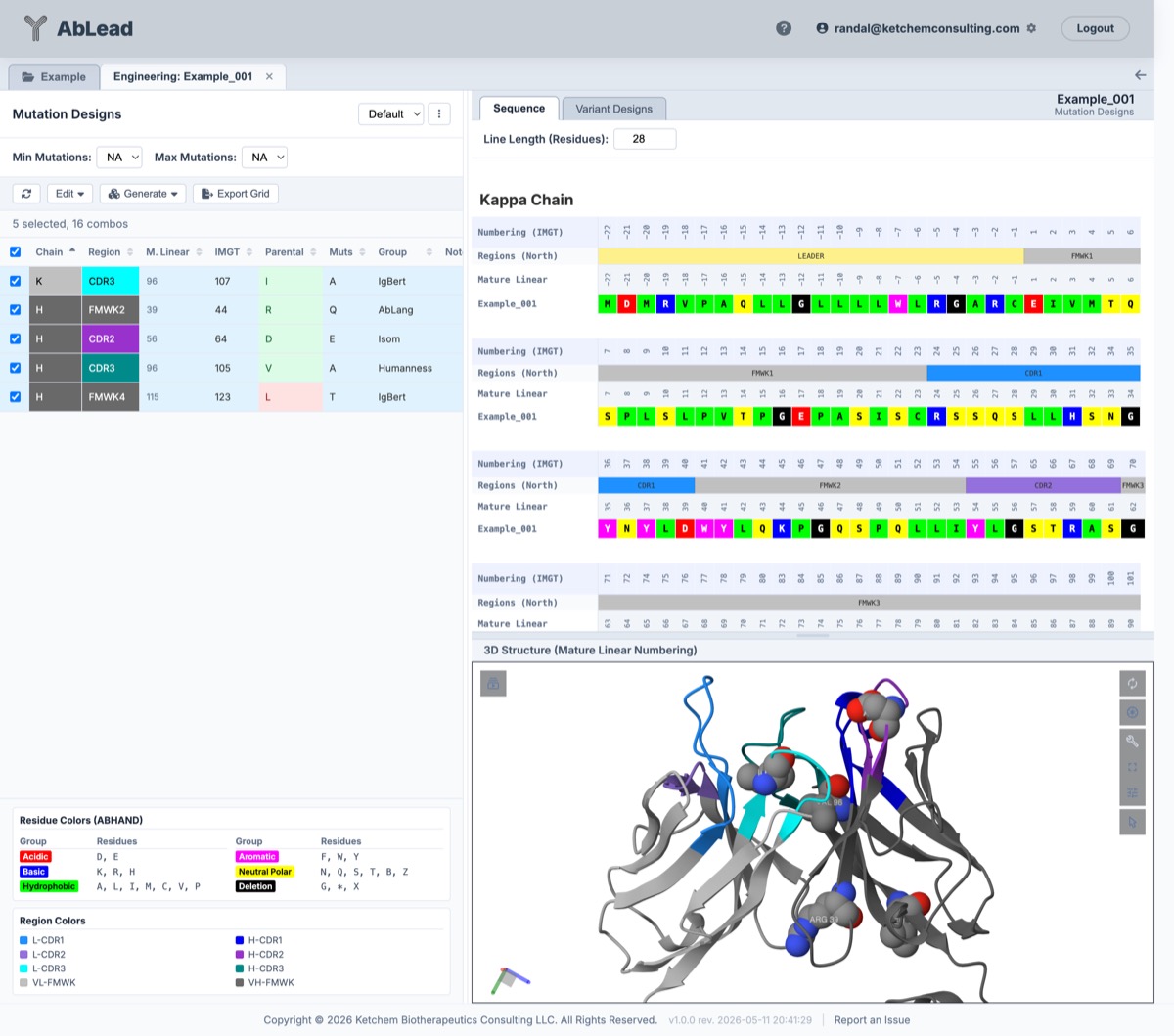
Engineering Mutation Designs:
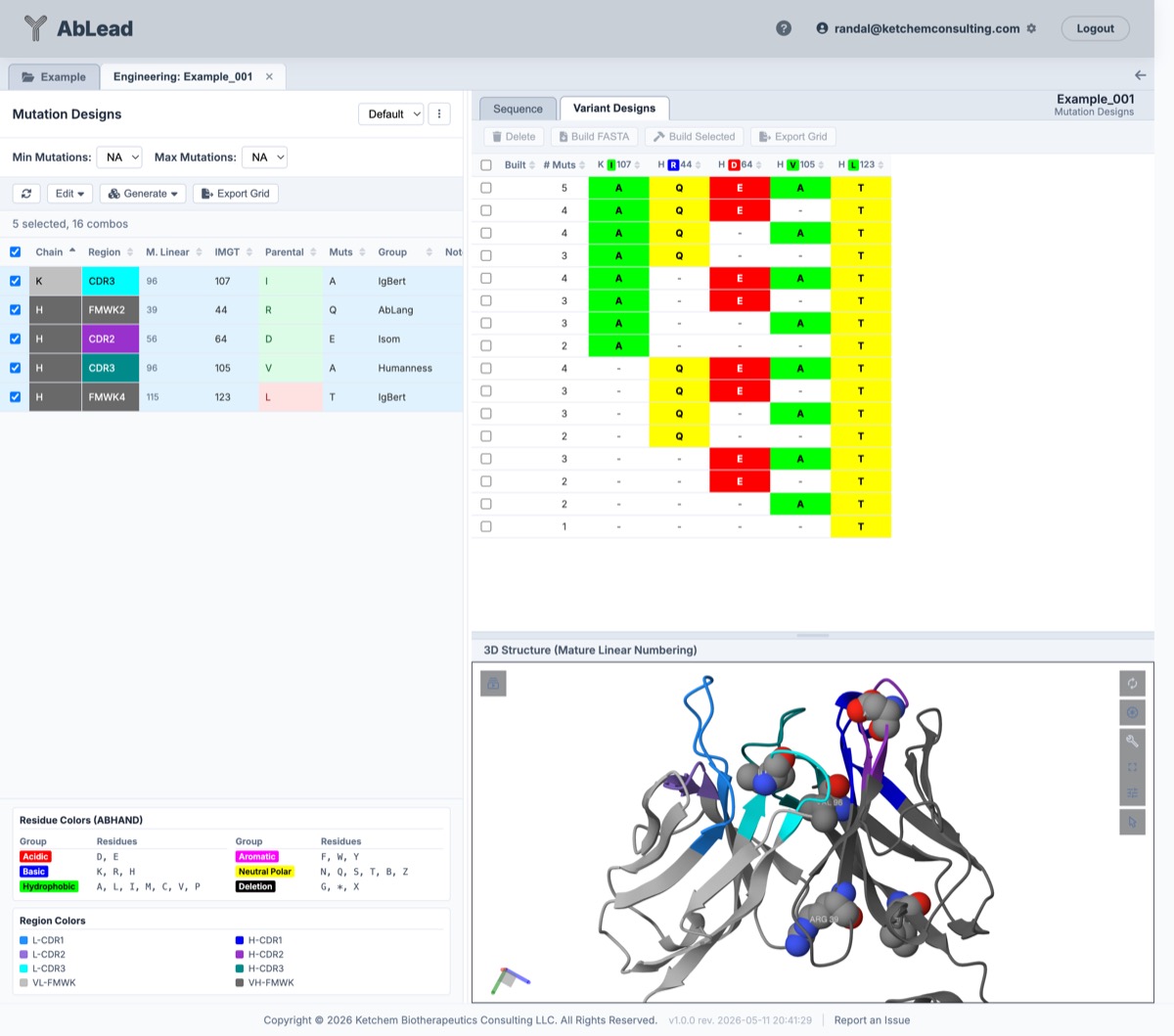
 Engineering Variant Designs:
Using the Tool
-
Mutation Sets: Mutations are grouped into Sets, allowing you to manage parallel design paths (e.g., one set for humanization, another for liability removal) on the same antibody without overlapping configurations.
- The Default set is the standard workspace and cannot be deleted. The tool always opens to this set by default.
- Use the ⋮ menu next to the set dropdown to create a New Set Name or delete the current set.
- Mutations across all sets are represented by indicator dots in external tools (e.g. Alignment, Liabilities, PFA, Humanness). Opening the shared Engineering modal displays a Design Set selector menu in the modal header, allowing you to view existing mutation designs across any set for that position, switch between sets, and save edits directly to your chosen set.
-
Library Mutagenesis & Deep Mutational Scanning (DMS) Data: You can upload client library mutagenesis data (e.g., Deep Mutational Scanning / DMS binding permissibility files) to guide antibody engineering and candidate selection.
- Importing & Managing Data: Click Library ▾ on the Mutation Designs toolbar to access all library actions from a single menu: Import Library Data, Link from Evaluated DMS Run..., View Uploaded Library Data, Create Set from Library, and Clear Uploaded Library Data. Supports the standard 8-column Deep Mutational Scanning (DMS) export format (
Chain,M. Linear,IMGT,Parental,Mutant,BindingScore,IsParental,IsAllowed), multi-tab Excel workbooks (.xlsx/.xls) containing a tabularDMS Residuesworksheet or positional matrix tabs, legacy 5-column CSV/TSV files (Chain,Position,Parental,Mutant,IsSafe/BindingScore), and matrix-formatted CSV files. Tabular formats feature discrete row records mapped by chain and position coordinates, while matrix formats feature combined mature position column headers (e.g.1N,2F,3M... orN1,F2,M3...) and row amino acid labels (A,D,E...) withYES/NOpermissibility cells. Sheet/tab names in Excel workbooks are processed dynamically. - Link from Evaluated DMS Run: Instead of manually preparing or uploading spreadsheet files, you can link mutational fitness matrices directly from a completed Deep Mutational Scanning (DMS) evaluation in your AbLead library account. Selecting Link from Evaluated DMS Run... launches an interactive modal listing your evaluated DMS runs with tested position counts. Selecting a run maps the evaluated fitness scores and permissibility classifications directly onto the target antibody, unlocking all downstream engineering tools (mutation sets, allowed badges, and FirstPassOptimize).
- Lineage Inheritance (Parents, Children & Grandchildren): Library mutagenesis data uploaded to a parent antibody is automatically inherited down the lineage tree by all descendant variants (children, grandchildren, etc.). If a child variant does not have its own directly uploaded library data, it recursively traverses its lineage tree to pull library data from the nearest ancestor, explicitly displaying a
<i class="fas fa-sitemap"></i> Inherited from Parent: <AncestorName>badge in all engineering modals and library views. If a child variant later has a custom library dataset uploaded directly to it, its direct library data takes precedence. - Allowed Column in Mutation Designs Table: The Mutation Designs grid includes an Allowed column displaying real-time permissibility status for every entered mutant amino acid at each position based on uploaded library mutagenesis data. Permissible mutants display green badges (
A,D), low binding/unsafe mutants display red badges (K), and hover tooltips report exact binding scores. - Overwrite Confirmation Warning: If a library dataset is already uploaded on the target antibody, uploading a new file triggers a dedicated Overwrite Library Data? confirmation modal (
#libOverwriteConfirmModal, styled after Assembler workspace warnings) warning that uploading a new file will replace existing library data. - Viewing Uploaded Data: Select View Uploaded Library Data from the Library ▾ menu to launch an interactive modal displaying the full library matrix aligned to Mature Linear 1-based position numbers (skipping leader sequences). Every column header features native column filtering (with floating popovers supporting operators like
>0.8,<=1, ranges0.5-1.0, and text matches) and 3-click sort cycling (1st click = Ascendingfa-sort-up, 2nd click = Descendingfa-sort-down, 3rd click = Reset to Default sort with Light chain before Heavy chain), plus CSV export capabilities. - Parental Residue Mismatch Validation: The required
Parentalamino acid column is used for sequence integrity validation. If position numbers in the file do not match the expected parental residue in the target antibody sequence (e.g., due to leader sequence offsets or scheme mismatch), the system displays a Parental Residue Mismatches Detected warning modal listing the mismatched positions, allowing you to review your file or force-import if desired. - Mature Linear Mapping: Uploaded position numbers represent Mature Linear sequence positions (1-based index starting after the signal leader offset) and are automatically mapped to canonical IMGT scheme positions.
- Create Set from Library: Select Create Set from Library from the Library ▾ menu to automatically extract all permissible substitutions (
IsSafe=true) into a named Mutation Set for combinatorial variant generation. - Clear Library Data: Select Clear Uploaded Library Data from the Library ▾ menu to permanently remove the uploaded library matrix from the antibody. This option, View Uploaded Library Data, and Create Set from Library are automatically grayed out when no library dataset is present.
- Shared Modal Integration: Uploaded library data is exposed across all tools (Alignment, Humanness, PFA, Liabilities, Clading, Surface Properties, Solvent Exposures, etc.). Clicking any residue opens the shared Engineering modal, displaying a Library Mutagenesis Data card with green/red permissibility badges and binding scores, plus a Use Safe Mutants button to auto-populate engineering designs.
- Importing & Managing Data: Click Library ▾ on the Mutation Designs toolbar to access all library actions from a single menu: Import Library Data, Link from Evaluated DMS Run..., View Uploaded Library Data, Create Set from Library, and Clear Uploaded Library Data. Supports the standard 8-column Deep Mutational Scanning (DMS) export format (
-
Edit Menu: Select mutations in the grid to enable the Edit dropdown menu in the toolbar. From here, you can Edit Mutation (if only one is selected), Delete selected mutations, or use Copy / Move to Set... to launch a dedicated transfer modal where you can select Copy or Move and choose the target set. If an entry already exists at the target sequence position in the destination set, a Target Set Conflict modal provides options to Merge (combining proposed mutations, notes, and groups with existing entries) or Overwrite before proceeding.
-
Pairing Designs: Sometimes residues are designed in pairs. For example, a fragmentation site might be DP, and mutating to either EP or DR would disrupt that site, but ER would not be needed. Or, a pair of residues should be mutated together and not separately, such as a missing HC-CDR3 salt bridge in both positions or a pair of unusual cysteines. Select two or more mutations in the grid and open the Edit menu in the toolbar to apply pairing settings:
- Pair Selected (Single): Groups the selected mutations under a new Pair ID. During variant generation, at most one mutation in this pair will be present in any generated variant (ensuring they are never made together). If "Include Parental" is not checked it is forced on the pair to enable variant generation.
- Pair Selected (Together): Groups the selected mutations under a new Pair ID. During variant generation, all mutations in the pair must be made together (or not at all), ensuring they are never made separately.
- Unpair Selected: Clears the pairing group and returns the selected mutations to standard independent mutations.
-
Mutation Designs: Click a residue in the Sequence tab, or in a tool supporting Engineering such as Alignment, PFA, or Liabilities, to open a mutation design. Mutation designs may be edited. The parental residue may be included in the variant design set or not. A parental residue is usually included if the user suspects the position may be necessary for function, in which case mutating the site would be risky. Use '-' to delete the residue.
-
Interactive Multi-Column Sorting: The Mutation Designs grid supports composite multi-column sorting across all table columns (Chain, Region, Mature Linear, Numbering Scheme, Parental, Muts, Allowed, Group, Pairing, Notes). Clicking column headers cycles through Ascending \(\rightarrow\) Descending \(\rightarrow\) Inactive with precedence badges (
[1],[2],[3], etc.). By default and upon clearing all active sorts, the grid preserves natural sequence order with Light chain (VL) before Heavy chain (VH), followed by mature linear sequence positions. -
Observations: Click a residue to enter an observation for that IMGT position. These are displayed in the Observations tab and on a clicked residue.
-
Min & Max Mutations Filters: Directly above the toolbar, you can specify Min Mutations and Max Mutations limits (defaulting to
NA). The dropdown options populate dynamically based on the number of checked mutational designs in your grid. For example, if you check 16 mutation designs and set Min to3and Max to5, only combinatorial variants carrying exactly 3, 4, or 5 mutations relative to the parental sequence will be generated.- The dynamic combination counter below the toolbar (e.g.,
16 selected, 6,748 combos) automatically recalculates in real-time to show the exact number of combinations that satisfy these criteria.
- The dynamic combination counter below the toolbar (e.g.,
-
Generate Variant Designs: First, use the Set dropdown to ensure you are viewing the correct set of mutations. Then, use the Generate dropdown menu in the toolbar to build combinations from that active set. The variant designs may be generated with parental residues as defined in the mutation designs using "Generate Combinations", or all parental residues ignored using "Generate Combinations (Non-Parent)". Only variants matching your active Min/Max filters will be generated.
-
Variant Designs: The generated designs are displayed in the Variant Designs tab. Designs may be deleted or selected for building new antibodies.
-
Build FASTA: Selected variant designs may be used to build and download a FASTA file.
-
Build Selected: Selected variant designs may be used to build new antibodies. New antibodies are added to the project and the parent antibody is assigned.
Using Sets - An Example
- Select Humanization on a parent entry.
- In the Humanization toolbar, select your desired Target Set or click
+ Newto create a dedicated set (auto-suggested asHumanization1,Humanization2, etc.). - Apply desired V and J germlines (or use Sapiens "Suggest Mutations") directly into that set.
- Click the "Engineering ↗" link in the success notification or navigate to Engineering to review the designs.
- In Engineering, build combinatorial variants by selecting the desired mutants in that set and using "Generate Combinations".
You now have a set of mutations isolated as "Humanization1". You can easily return to the Humanization tool to design additional parallel candidates (e.g. "Humanization2") and generate combinations independently for each set.
Importing Library Mutagenesis Data - Examples
Option A: Deep Mutational Scanning (DMS) Tabular Format (8-Column CSV / TSV / Excel "DMS Residues")
The primary and recommended import format is the standardized 8-column tabular format generated directly by AbLead's Library Evaluation & Import workspace (and its Residue Matrix / View Residue Results exports), as well as multi-sheet Excel workbooks (.xlsx) containing a sheet named DMS Residues (or Residues / Mutations).
This format provides explicit chain segregation, dual position coordinates (mature linear sequence index and canonical IMGT numbering), wildtype tracking, binding enrichment scores, and binary permissibility flags:
Chain,M. Linear,IMGT,Parental,Mutant,BindingScore,IsParental,IsAllowed
L,28,28,D,E,1.25,0,1
L,28,28,D,D,0.00,1,1
L,28,28,D,R,-3.50,0,0
H,102,110,D,E,1.80,0,1
H,102,110,D,D,0.00,1,1
H,102,110,D,K,-2.10,0,0
Column definitions:
Chain: Antibody variable domain identifier (LorVLfor Light chain;HorVHfor Heavy chain). In adherence to system conventions, Light chain records should appear before Heavy chain records.M. Linear: 1-based mature linear position index (numbering begins at residue 1 of the mature variable domain, skipping leader sequence offsets).IMGT: Canonical IMGT scheme position numbering (e.g.28,110,112A). If only one position column is supplied, the system resolves mature linear and scheme positions automatically.Parental: Single-letter wildtype parental amino acid at this sequence position. Used by the importer to validate sequence alignment and prevent offset errors.Mutant: Single-letter candidate substituted amino acid. Must include parental residues evaluated at the position.BindingScore: Quantitative mutational fitness or binding enrichment score (typically \(\log_2\) fold change or enrichment ratio relative to input baseline).IsParental: Binary flag (1ortrueifMutantmatchesParental,0orfalseotherwise).IsAllowed: Binary permissibility flag (1ortrueif the mutant meets the safety/fitness threshold or represents the parental residue;0orfalseif penalized or depleted).
Option B: Legacy 5-Column CSV / TSV Format
For simplified workflows or custom external datasets, a 5-column table using mature linear numbering is supported:
Chain,Position,Parental,Mutant,BindingScore,IsSafe
L,33,N,Q,1.1,true
L,33,N,T,0.8,true
L,33,N,P,0.1,false
Note: The 5th and 6th columns accept either BindingScore and IsSafe, or BindingScore and IsAllowed interchangeably.
Option C: Multi-Tab Excel Matrix Format (.xlsx / .xls)
Prepare an Excel workbook where columns represent position numbers paired with their parental amino acid (e.g., 1N, 2F, 3M... or N1, F2, M3...), and rows represent candidate amino acid substitutions. Cell values indicate permissibility (e.g. YES, TRUE, 1, or numeric binding score \(\ge 0.5\) for safe; NO, FALSE, 0, or \(< 0.5\) for unsafe):
| AA | 1N | 2F | 3M | 4L | 5V | 6E | 7S | 8G | 9G | 10G |
|---|---|---|---|---|---|---|---|---|---|---|
| A | YES | NO | NO | NO | YES | NO | YES | NO | NO | NO |
| C | NO | NO | NO | NO | NO | NO | NO | NO | NO | NO |
| D | YES | NO | NO | NO | NO | YES | NO | NO | NO | NO |
| E | YES | NO | NO | NO | NO | YES | NO | NO | NO | NO |
| F | NO | YES | NO | NO | NO | NO | NO | NO | NO | NO |
Note on Excel Workbooks: Workbooks can contain both tabular worksheets (such as an exported
DMS Residuessheet) and matrix worksheets (such asLight ChainandHeavy Chaintabs). The importer detects the layout of each worksheet automatically and aligns sequence positions against the active antibody. Tab names do not need to follow strict conventions.
Option D: Direct Link from Evaluated DMS Library Run
If you have evaluated a Deep Mutational Scanning NGS library in AbLead's Library Evaluation & Import workspace:
- Click Library ▾ > Link from Evaluated DMS Run... on the Mutation Designs toolbar.
- Select the evaluated DMS library from your account dropdown.
- Review the tested position count and run summary in the modal preview box.
- Click Link DMS Library Data to populate the full permissibility matrix into this antibody workspace immediately.
Lineage Inheritance in Child & Grandchild Antibodies
When building or analyzing child variants (e.g., Parent_M.001 or grandchild Parent_M.001_v2), library mutagenesis data uploaded to any ancestor is automatically inherited across the entire project lineage:
- Automatic Inheritance: Children and grandchildren inherit the parent's library matrix automatically without requiring re-uploading.
- Visual Source Annotation: All residue modals and library views explicitly display an Inherited from Parent: ParentName source badge to indicate inherited authority.
- Override Priority: If a child antibody has a custom library matrix directly uploaded to it, its direct library data takes precedence over ancestor data.